· Philippe Daix · How It Works · 1 min read
Worklogs – Search
Finding older messages is not always easy, but Worklogs offers a few tools that will help.
Finding older messages is not always easy, but Worklogs offers a few tools that will help.
Search – Cmd+K
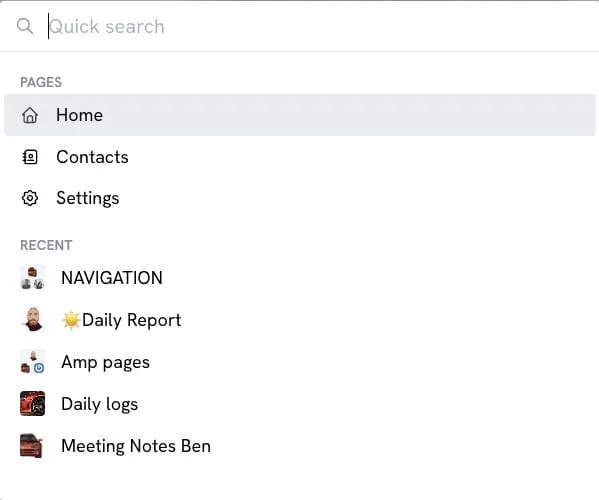
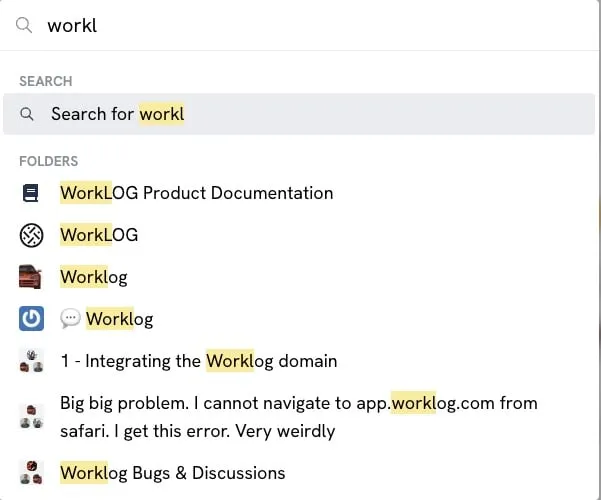
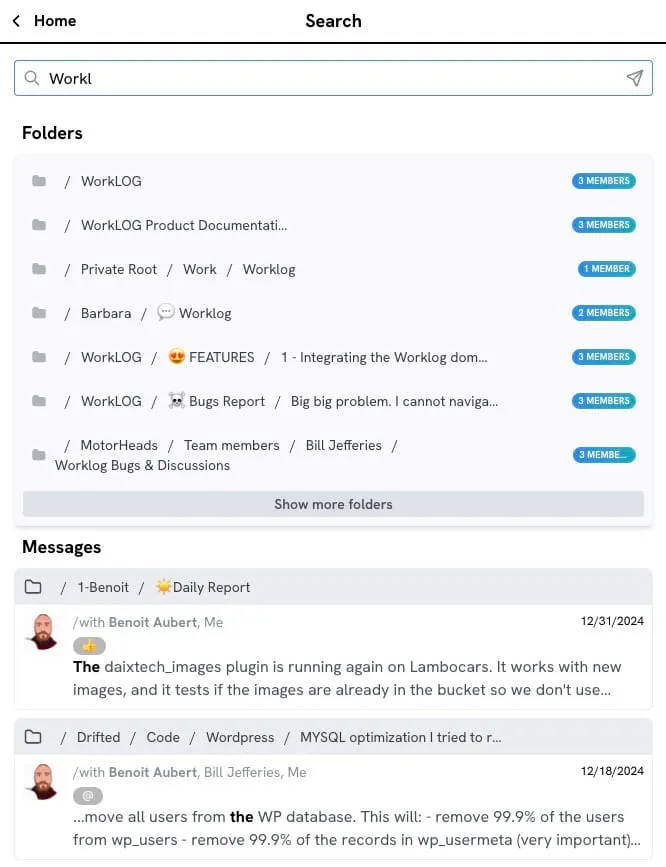
Users can access the search function by pressing Cmd+K, which opens a modal interface. The search feature includes:
- Quick folder search that displays results as you type
- Full search results when pressing ENTER, split between Folder and Messages categories
Artificial Intelligence (AI)
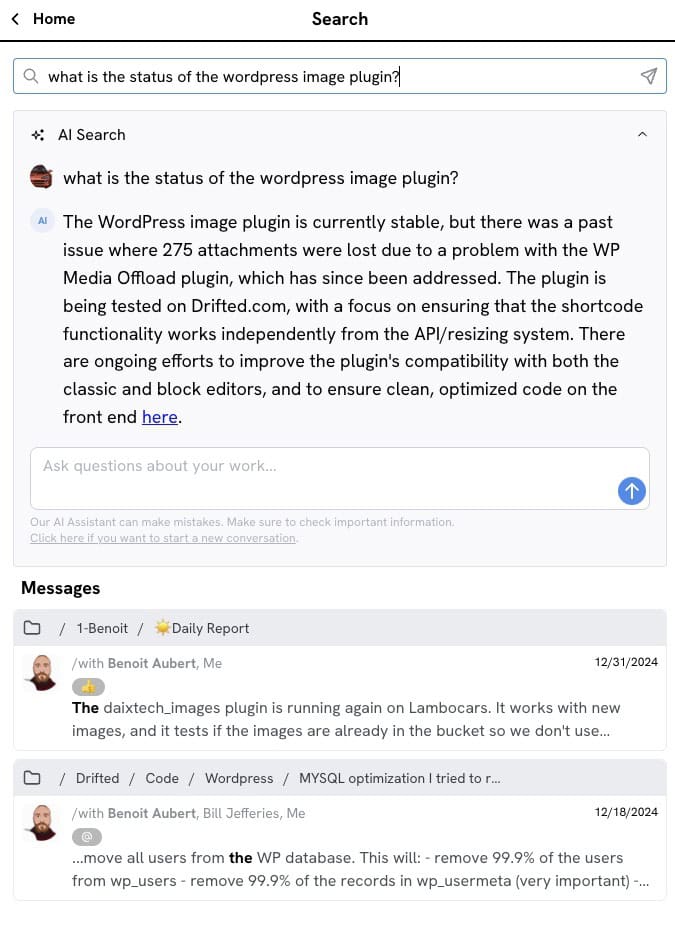
Worklogs provides AI-powered natural language search capabilities. The system uses OpenAI to query private vector databases while maintaining data security.
Your data remains totally separated from OpenAI and stays securely stored in your own vector database, unique to your account.
Long search queries are processed by AI, returning redacted answers with source message links.
User Profile
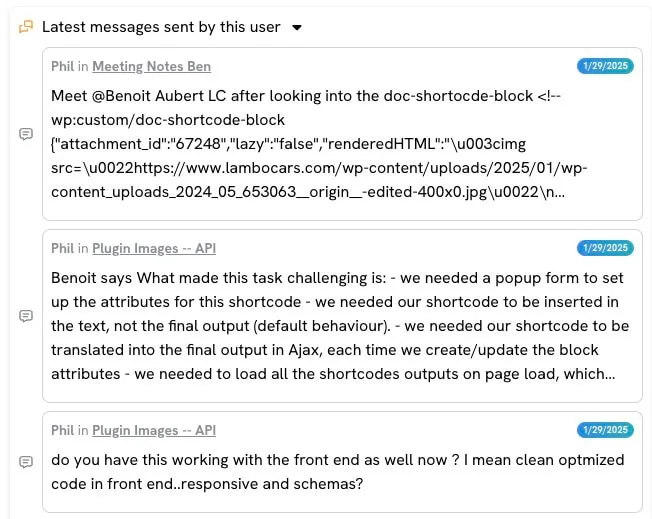
Users can view all messages from specific authors by clicking on message authors to access their profiles. This makes it easy to find everything a particular team member has contributed.